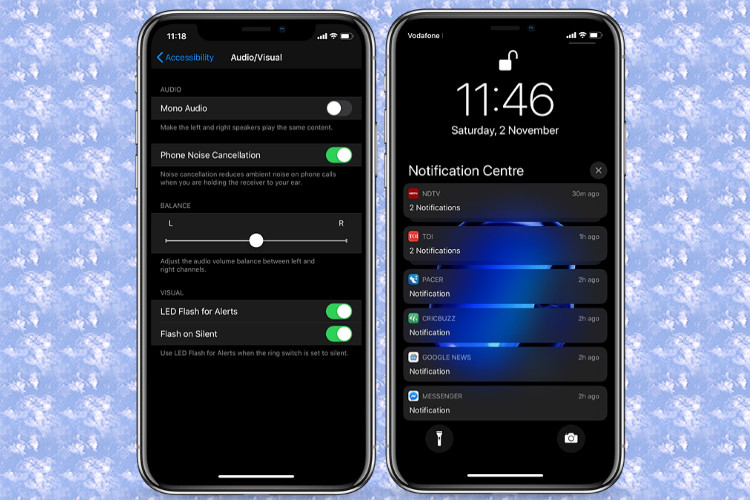
Just like AssistiveTouch, LED Flash for notifications could be helpful for everyone. While this Accessibility feature has been primarily designed for the deaf and hearing impaired, anyone can use it to get visual alerts. Times when “Do Not Disturb” is active, this feature makes it a bit more convenient to know that a new notification has arrived. Personally, I like to use it to ensure I don’t miss out on important messages even during leisure times. Whether you are differently-abled or feel the need to have visual notifications, let me help you enable “LED Flash for Alerts” in iOS 13 on your iPhone.
How to Turn on LED Notification Light on iPhone
With iOS 13, Apple has slightly tweaked the settings of Accessibility. For a change, it has now got a standalone section and is no longer the part of the General category. Given how user-friendly this feature is, it’s a welcome move. The relocation has also shuffled the place of the LED flash. And that’s the reason why I thought many Apple customers might be a little confused about the process of turning LED notification light on the iPhone. With that said, let’s get started with the quick steps!
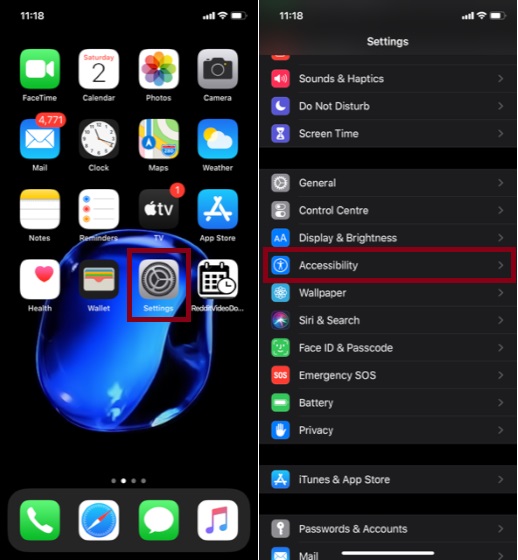
1. Launch the Settings app on your device and choose Accessibility.
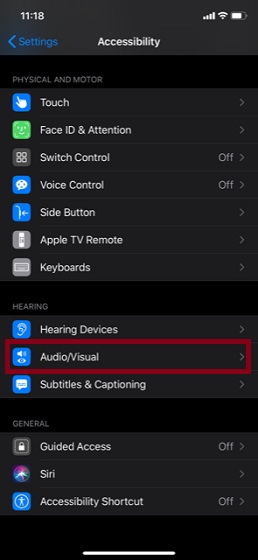
2. Under the HEARING section, tap on the Audio/Visual option.
3. Under the Visual section, turn on the switch that is right next to LED Flash for Alerts. Next, another toggle named “Flash on Silent” will show up. If you need the visual notification light even when your iPhone is silent, be sure to keep this switch enabled.
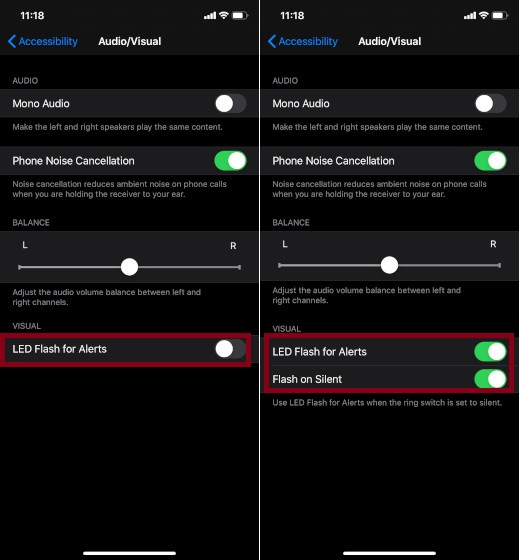
That’s it! Going forward, you will get the visual notification lights on your iPhone. Later, if you ever want to disable the flashlight alerts, all you need to do is return to the same Settings and then turn off LED Flash toggle in the end.
SEE ALSO: How to Add Custom Glyphs to Shortcuts on iPhone and iPad
Set Up Flash Light Notifications on Your iPhone…
So, that’s the quick way to enable flashlight alerts on iOS 13. Even though it’s a pretty simple feature that might not rank in everyone’s favorites collection, I have loved using it for years. It just makes a tad easier for me to stay in sync with the latest notifications so that I won’t miss them even when I’m in DND mode. Do you also find it helpful?