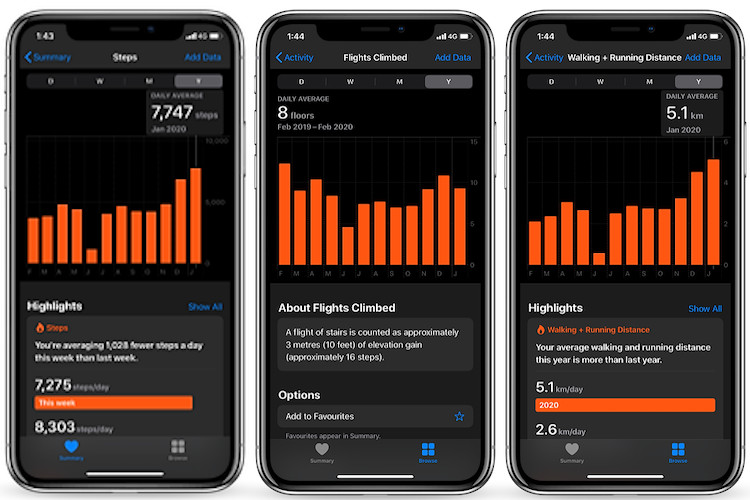
When it comes to tracking health and fitness data, Apple Health remains my top bet by a long distance. Apart from boasting a whole host of health-centric features like hearing health and cycle-tracking, the app excels in measuring a variety of metrics accurately. But that doesn’t mean it never fails to get the Maths right. Many a time, I have seen the app unable to count walking and running distance with the desired accuracy. And when that happens, I feel like losing the challenge well before completing the goal. Fortunately, there is always a straightforward way to add data to a health category on the iPhone. If you belong to the same ballpark as me, let me show you how you can manually add data to health app on iPhone.
How to Manually Update Data of Health App on iPhone
Apple Health allows users to configure data of a variety of categories including activity, body measurements, heart rate, mindfulness and more. So, if you ever find the discrepancy in tracking the data a bit too much to handle, you can take control of it. Besides, the Health app also lets you view the apps that have permission to update your health data. And depending on your needs, you can also manage the data of each app. Enough talk? Let’s get on with the steps, shall we?
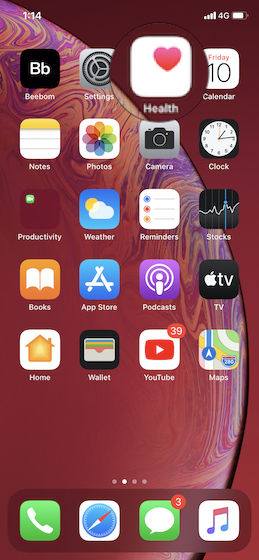
1. Launch Health app on your iPhone.
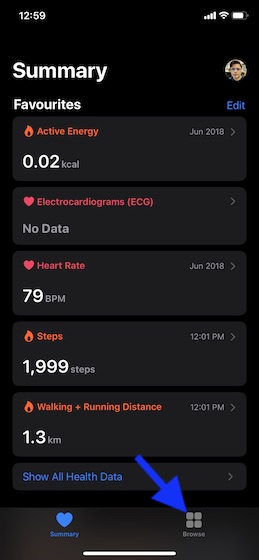
2. Now, tap on the Browse tab at the bottom.
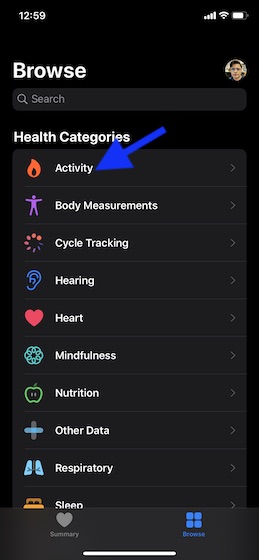
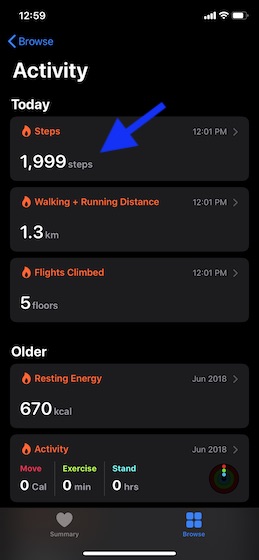
3. Under the Health Category section, tap on a specific category like Activity.
4. Next, tap on a subcategory like Steps.
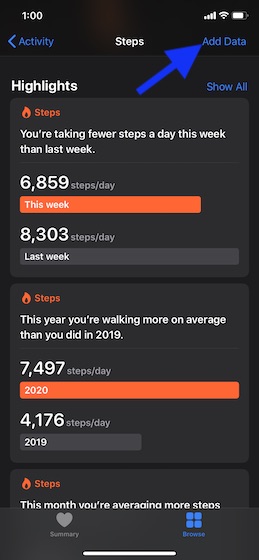
5. Next up, tap on Add Data at the top right corner of the screen.
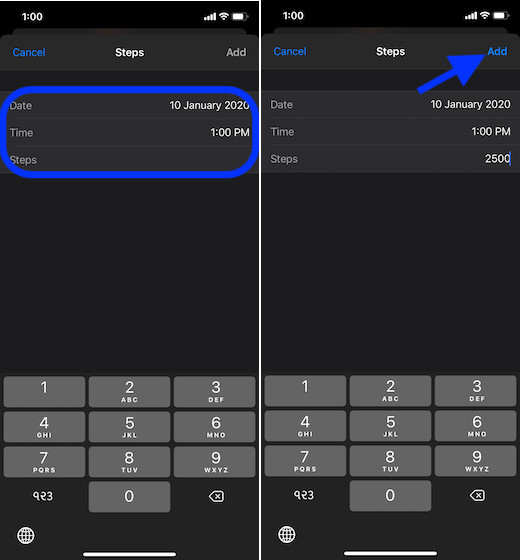
6. Now, enter the accurate date, time, and data for this activity. Finally, tap on Add at the top right corner to finish.
Check Which Apps are Allowed to Update Your Health Data
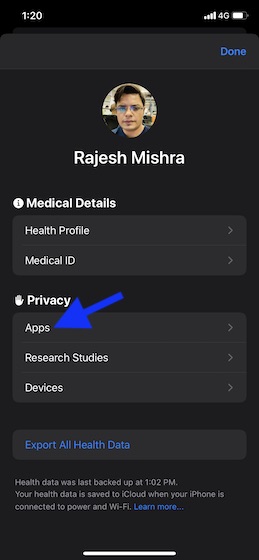
1. Launch the Health app on your iPhone and then tap on your profile picture.
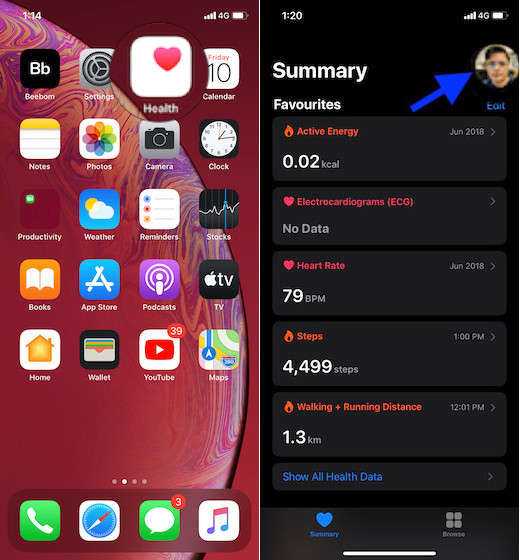
2. Under the Privacy section, tap on Apps.
3. On this screen, you should see all the compatible apps. Now, tap on a specific app. Then, manage the health data as per your needs.
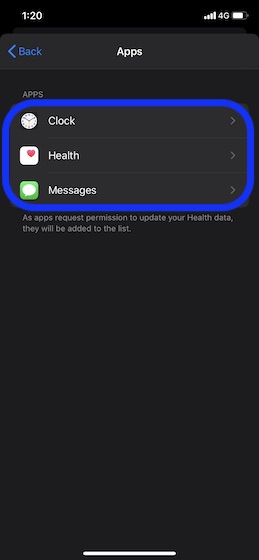
Note: In some cases, you will have to launch the app and customize its setting to enable it to share the data with the Apple Health app.
Manually Update Health Data on iPhone
There you go! So, that’s how you can add data to the Health app manually on your iPhone. Times when you find the app unable to record data accurately, use this simple trick to update the information. By the way, what do you think of this feature? Also, let us know about the improvements that you want to see in the Health app in the upcoming iOS version.