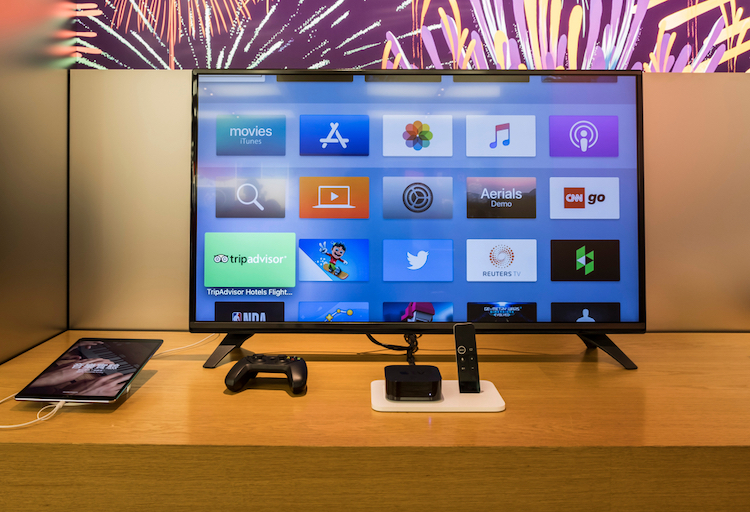
With AirPlay, mirroring videos from iPhone to compatible devices like Apple TV is a seamless experience. While there are several third-party wireless streaming services in the market, none can compete with the repertoire of Apple’s media-streaming technology. The latest iteration of iOS enables iPhones to auto-connect to AirPlay TVs so that users can get started with binge-watching straightaway. Though it is a well-thought-out feature, I don’t think everyone is going to appreciate this behavior. Frankly speaking, I have found it a tad annoying. It’s not like that every time when I play videos on the iPhone, I want to send them right away on the big screen. Luckily, Apple has offered a way to stop the iPhone and iPad from automatically connecting to AirPlay TVs. Let me talk you through how it works!
Prevent iPhone and iPad from Auto-Connecting to AirPlay TVs
You guessed it. You can’t turn off this AirPlay feature without having to dive a little deep into the Settings – at least for now. One more thing worth keeping in mind is that your devices must be running iOS 13.2 and the equivalent version of iPadOS to take control of it. Else, the Automatic AirPlay option won’t show up.
1. Launch the Settings app on your iPhone or iPad. Then, tap on General.
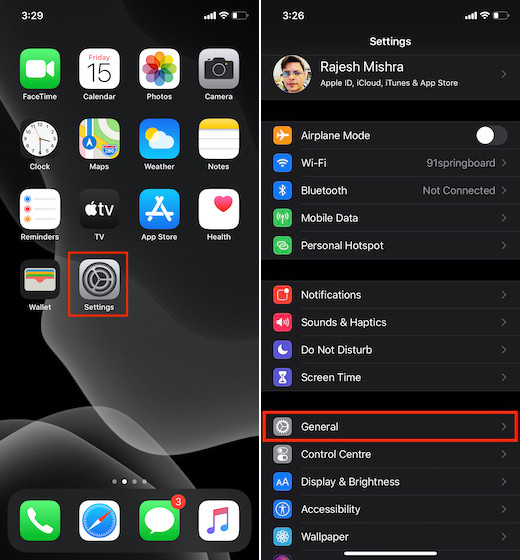
2. Next, tap on AirPlay & Handoff.
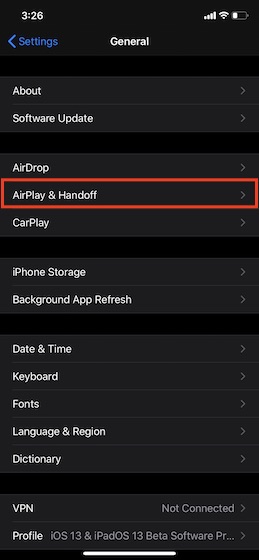
3. Next up, tap on Automatically AirPlay to TVs.

4. On the next screen, you have three options:

- Never: Choose it to prevent your iOS or iPadOS device from automatically sending videos to the AirPlay supported smart TVs.
- Ask: Select it to get a prompt asking you to confirm before automatically connecting to the nearby AirPlay TVs when playing videos in the compatible apps.
- Automatic: It’s selected by default and allows you to automatically mirror the videos playing on your device.
Select Never. If you ever wished to change this behavior and want to get back the default functionality, navigate to the same settings (mentioned above) and then choose Automatic in the end.
Stop Your iOS or iPadOS Device from Auto-Connecting to AirPlay TVs
Expanding the boundary of AirPlay beyond the Apple ecosystem is a part of the long-baked strategy to boost the growth of a series of Apple Services including the newly launched Apple TV+. With this media-streaming protocol finally going beyond the Apple ecosystem, it remains to be seen whether or not iMessage and AirDrop also get the much-awaited expansion. We hope that Apple is working to bring these features across platforms because they are really good. And finding iMessage alternatives or AirDrop alternatives might be a quick fix but not a real solution. How do you feel about this topic. Let us know in the comments section below.