
One of the major features introduced with the latest stable version update of Chrome is the ability to force dark mode on websites that do not have a dark version by default. The feature has finally made its way to the latest Canary build of Chromium-based Edge.
Just like Google Chrome, the feature needs to be enabled by using an experimental flag. If you are using Chromium-based Edge and would like to try out the force dark mode feature right now, here is how you can enable it.
Open the Edge browser and paste the following address in the address bar of your browser.
edge://flags/#enable-force-dark
Once you go to this address, you will see “Force Dark Mode for Web Contents” flag with a drop-down list that says Default. Click on that and select “Enabled”. You are also provided with other options like Enabled with simple HSL-based inversion, CIELAB-based inversion, selective image inversion, selective inversion of non-image elements, and selective inversion of everything. Try them out one by one and choose the one that suits your aesthetics.
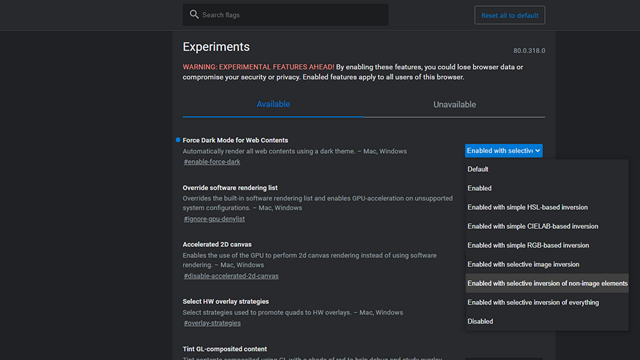
If you are not feeling satisfied by the dark mode that gets enabled with this flag, you can disable it by entering the same address and choosing “Disabled”. This will revert your browser to the normal color scheme without a dark mode.
I tried enabling the feature on Edge Canary version 80.0.318.0 and it worked just fine as you can see in the below image. The flag should be making its way to the Dev branch and Beta branch of Edge soon enough.

I’ve been using this force dark mode flag ever since it became available in Chrome’s Canary version and I do think it is a good native way to get rid of the eye hurting white theme. While the flag does justice to most of the websites, it breaks the color schemes of some websites out there and more work needs to be done for the flag to be compatible with all the websites.
In case you’re hearing about Chromium-based Edge for the first time, do not worry. Check out our guide to install Chromium Edge on your PC. Try out the flag and let us know your views on it in the comments.