Simple and smooth gestures come in super handy, especially when editing text on a smartphone or tablet. Moreover, they hardly require any learning curve and fit into practice seamlessly – unlike the shake-to-undo/redo that feels awkward to perform. With iOS 13, Apple has banked on three-finger gestures to offer a more simplified text manipulation experience. And I must say that it is pretty easy to use the new text-editing gestures to cut, copy, paste, undo and redo in iOS 13 and iPadOS 13. Don’t believe me? Try it yourself to see how swiftly these new gestures work!
How to Cut, Copy, Paste, Undo or Redo Using Gestures on iPhone and iPad
Without getting into the debate as to why it took so long for Apple to introduce intuitive gestures for such commonly performed actions, let me say that the three-finger text-editing gestures may sound too tiny to grab any headlines but they are going to make a huge difference into the way you edit text on your iPhone or iPad. So, all you need to get the most of them is to bring them into practice sooner than later.
Select Text with Ease
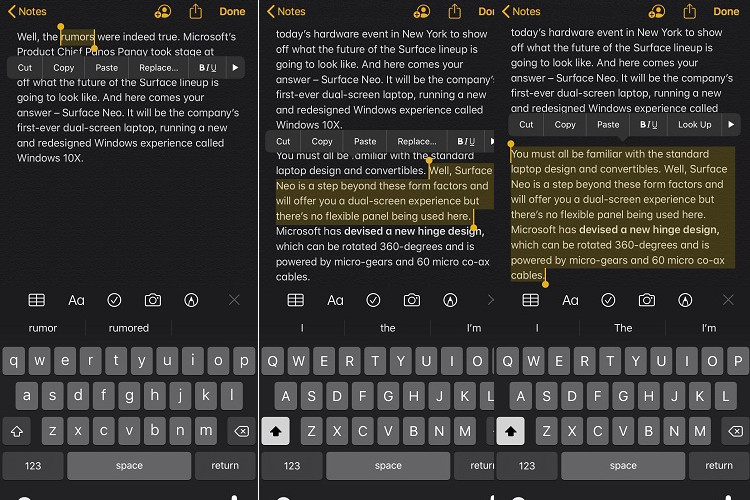
Unlike before, you can select text with ease on your iPhone or iPad – without having to deal with the tricky text selection handles.
To select any word: Simply double-tap on a word to select it. The word will be immediately highlighted. It’s that simple, isn’t it?

To select a sentence: Just perform a triple tap on any word of the sentence.
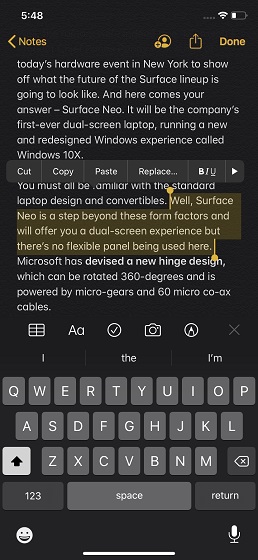
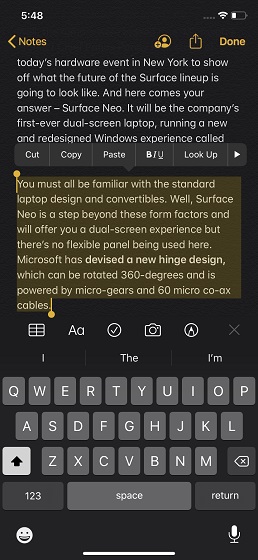
To select an entire paragraph: All you need to do is perform a quadruple tap anywhere in the paragraph.
Use Intelligent Selection
The latest iteration of iOS comes with a feature called, Intelligent Selection. It allows you to select an address, phone number or even email conveniently while editing text. Keep it in mind, Intelligent Selection lets you select only one item at a time so you can’t select two items at one go. When editing text, simply double-tap on a phone number, email address or any information to select it.
Cut, Copy, and Paste with Three-Finger Gestures
To copy text: simply select it first using the same gestures mentioned above. Then, pinch in with three fingers. A copy icon will flash at the top of the screen to confirm that you have successfully copied the text.
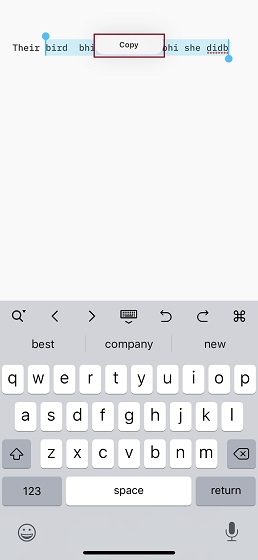
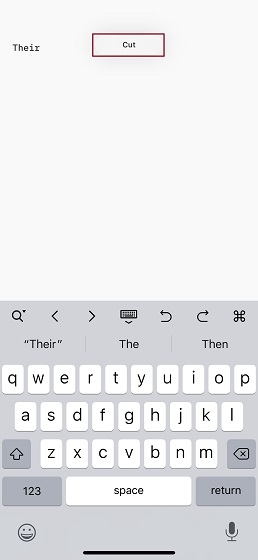
To cut text: Once you selected the text, simply perform the copy gesture twice. The text will disappear and be stored in the iOS clipboard.
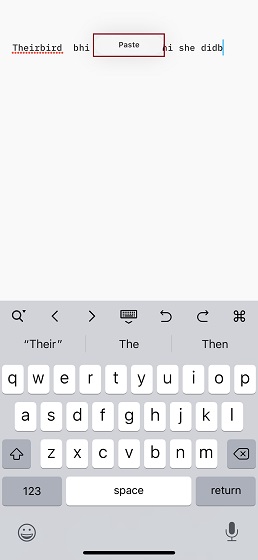
To paste text: Just pinch out with three fingers. The text will immediately paste. Besides, the paste button located at the top of the screen will also flash to confirm the action.
How to Use the Undo and Redo Gestures
To get going, ensure that you are in the text editing mode.
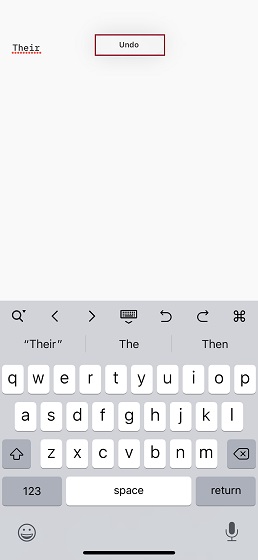
To undo an action: Simply perform a three-finger swipe to the left.
To redo an action: All you need to do is perform a three-finger swipe to the right. Quite intuitive, isn’t it?
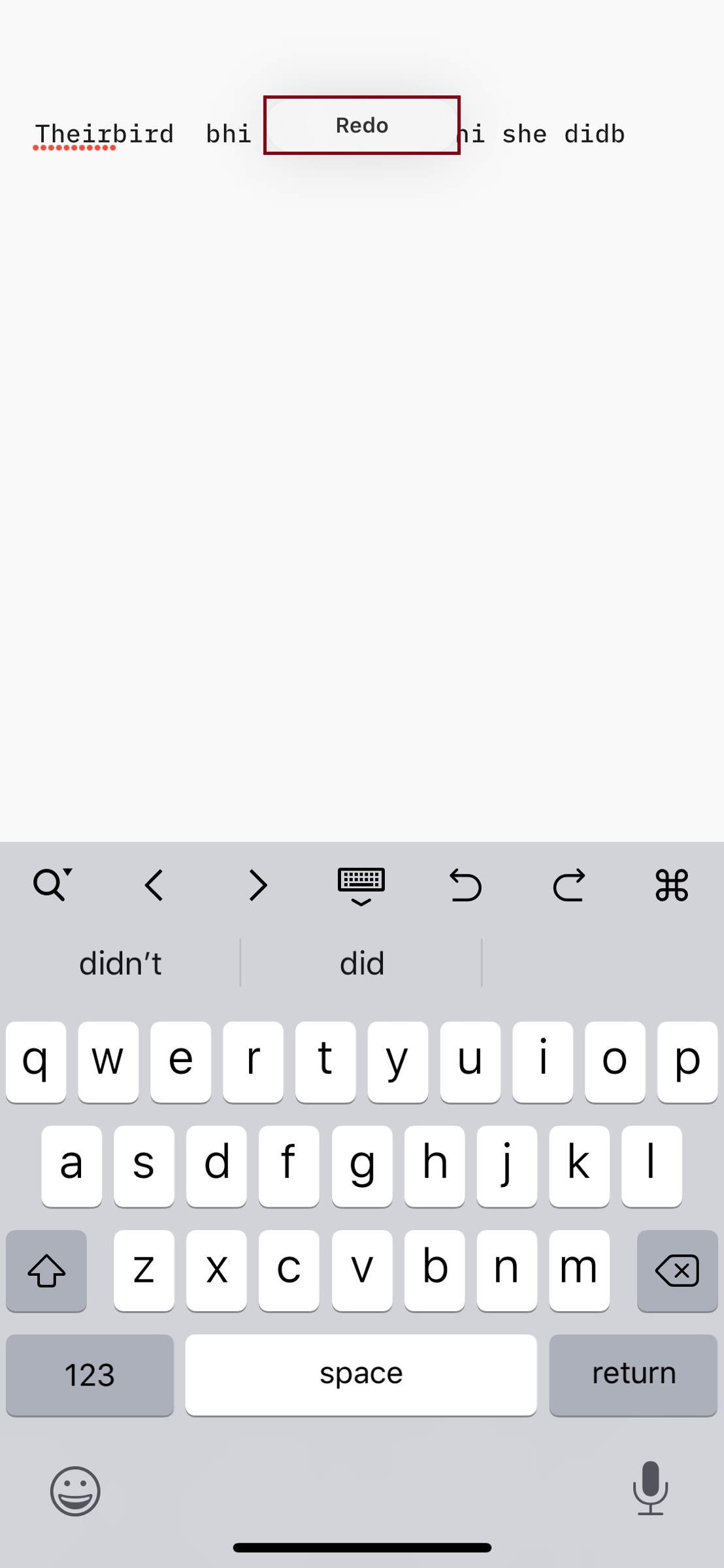
Alternately, double-tap with three fingers to undo or redo any action.
SEE ALSO: 10 Tips to Improve Security and Privacy in iOS 13
Use Three-Finger Gestures to Simplify Text Editing on iOS and iPadOS
Indeed, the three-finger gestures have made text editing a painless exercise – to say the least. The best part about them is that they are quite intuitive and work with the desired smoothness. More significantly, they seem to be an integral part of text editing on iPhone or iPad – unlike the “Shake-to-Undo/Redo (still exists) that never felt a user-friendly tool, let alone enhancing the user experience.