Video calls have evolved to be one of the most essential means for business-related meetings and catching up with friends and family. A major issue anyone can face while making a video call is tolerating the ambient noise from the person at the other end. While apps like Krisp help eliminate the background noise, experiencing what the other person would be hearing in the video call and moving to a more calm environment is much more efficient and a 14-year old full-stack and iOS developer has designed a website named JoinMyCall which does just that.
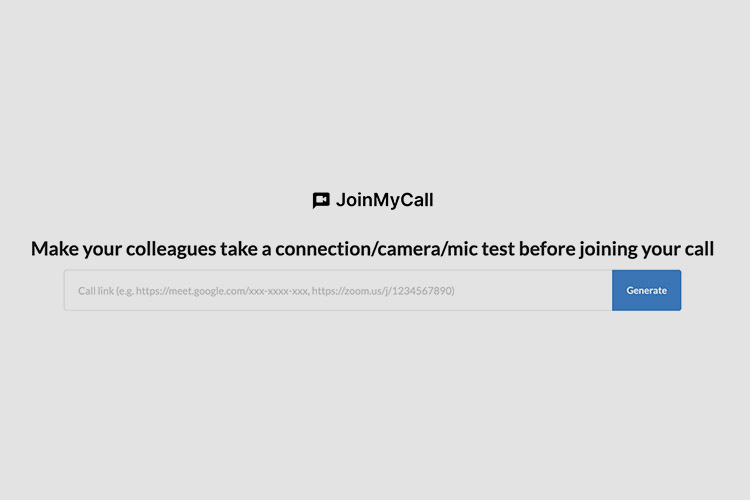
JoinMyCall is a website that is designed to work with popular video calling services like Google Hangouts, Google Meet, and Zoom. To get started, you will have to initiate the video call with the person you wish to communicate. After the initiation, a link will appear on the address bar of the video call platform you’re using. You’ll have to copy that link and paste it to JoinMyCall and click on Generate. On doing so, a link will be generated similar to the one seen on the below image.
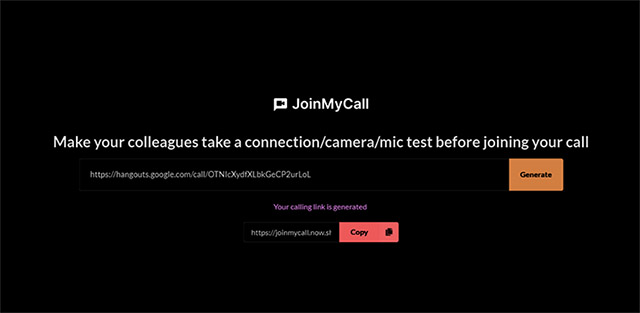
Clicking on the Copy button will copy the generated link and this link needs to be opened from a web browser. On doing so, you’ll be presented with an intermediate page powered by the website that provides you with two options. You have the option to proceed to the call if you’re in an emergency or not in a mood to perform background checks. Otherwise, you can use the service to check your video call quality by pressing the “Yes, sure!” button.
This is the part where everything gets exciting. The website offers you two views – A Local view and a Remote view. In the Local view, you will be able to see the stream of what the front camera is capturing. This is usually what you get as a miniature image on video calls. On the remote view, it demonstrates how the other person will be getting the call. Since this mainly depends on the internet connection of the recipient, I don’t find much of a difference in quality between local view and remote view.
The audio part is where things get a bit cringy. You’ll be hearing a lot of ambient noise which you never thought would be present in the calls. For instance, when I did the trial run of the website, I could even hear people talking from an approximate distance of 15 meters that actually turned out to be pretty annoying.
Once you’re done with your testing, you can get back to the call by pressing the green-colored “Yes it is“ button. Quite simple and easy way to do a quality check, isn’t it? Check out JoinMyCall today and do let us know your experience in the comments.